HubSpot Integration Setup Guide
Connect Factor8 to HubSpot to get access to Breeze Tools and AI Agents.
Setup guide for Factor8
Factor8 integrates AI-powered content generation and workflow automation with HubSpot, which lets users:
- Trigger AI agents directly from HubSpot workflows to automatically generate content, analyze data, and perform tasks
- Fetch agent outputs and task results back into HubSpot properties and records
- Automate content creation based on deal stages, contact properties, and other HubSpot events
Each brand in Factor8 maintains its own separate HubSpot connection, ensuring data isolation and security.
Install the app
Follow these steps to install Factor8 and connect your HubSpot account:
Step 1: Navigate to Integrations Settings
- Log in to your Factor8 account
- Select the brand you want to connect to HubSpot
- Go to Settings → Integrations in the left sidebar
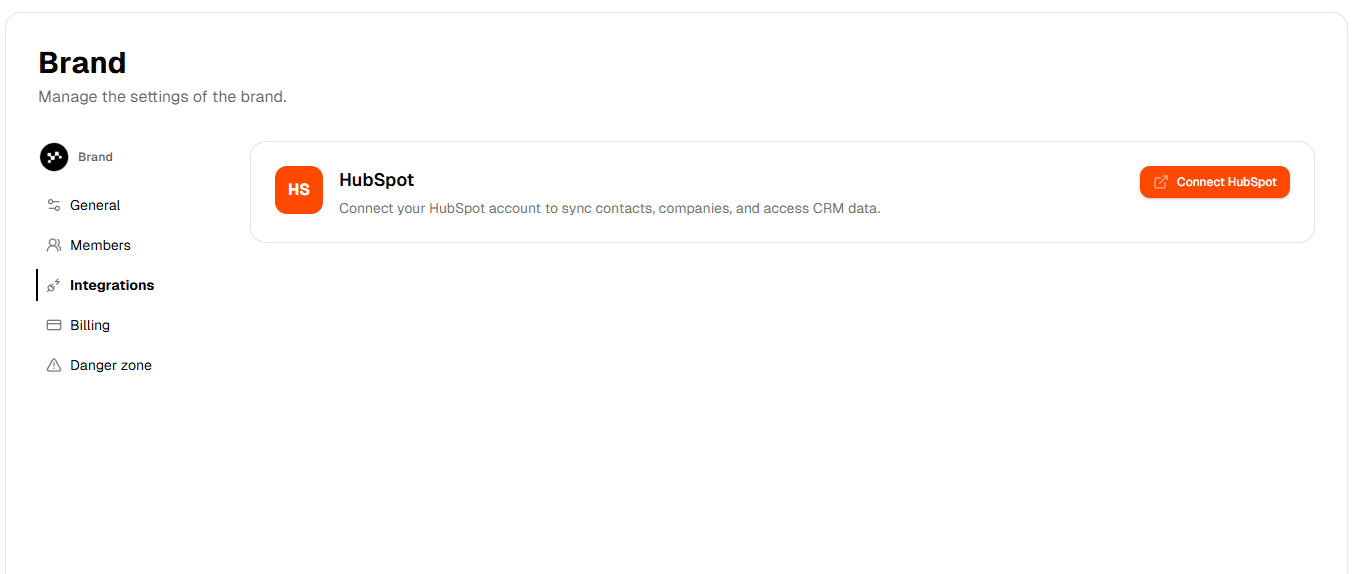
Step 2: Connect HubSpot
- Click the "Connect HubSpot" button on the HubSpot integration card
- You'll be redirected to HubSpot's authorization page
- Review the requested scopes on this screen. Factor8 requests access to read and write contacts & companies, as well as read and edit contact & company properties
- Click "Connect app"
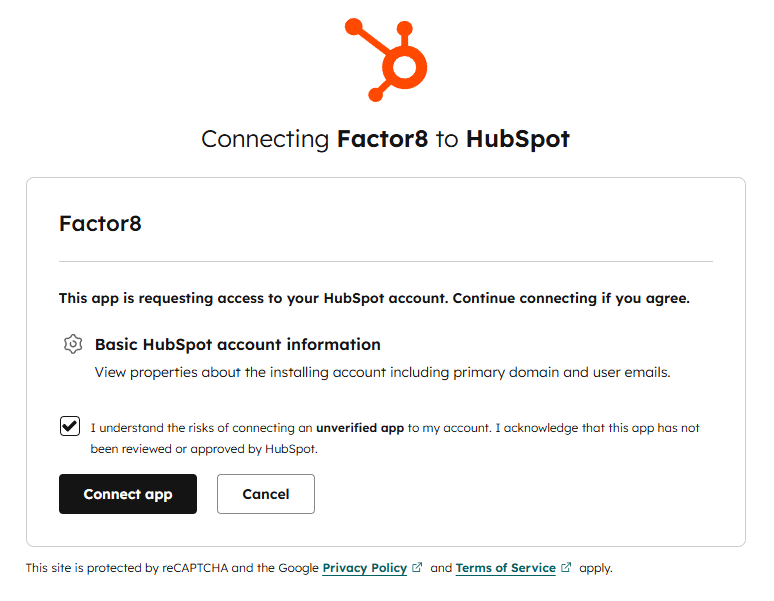
Step 3: Verify Connection
After authorization, you'll be redirected back to Factor8. You will see:
- A "Connected to HubSpot" status indicator
- Your HubSpot portal name (e.g., "yourcompany.com")
- The connection timestamp showing when the integration was established
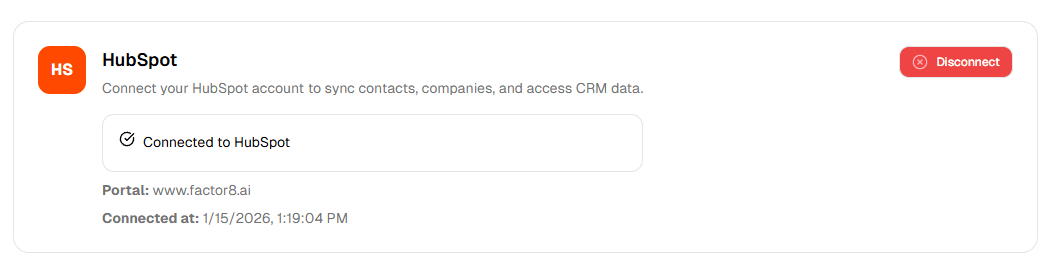
Connection Details
Factor8 automatically stores the following connection information:
| Field | Description |
|---|---|
| Portal/Hub ID | Your unique HubSpot portal identifier |
| Portal Domain | Your domain (e.g., yourcompany.com) |
| Connected At | Timestamp of when the connection was established |
Brand Scope
- Each HubSpot connection is scoped to a single brand in Factor8
- If you have multiple brands, you can connect different HubSpot portals to each
- One user can connect the same HubSpot portal to multiple brands if needed
Use the app
Factor8 provides both automated and manual ways to interact with HubSpot:
Automated Usage (HubSpot Workflows)
Once connected, you can configure HubSpot workflows to use Factor8's custom actions:
- Navigate to Automation → Workflows in your HubSpot account
- Create a new workflow or edit an existing one
- Add a Factor8 action step:
- Run Flow: Trigger an AI agent with form data
- Fetch Agent Outputs: Retrieve completed task results
- Configure the action inputs and map outputs to HubSpot properties
Once configured, Factor8 automatically runs AI agents based on your HubSpot workflow triggers:
Run Flow Action
Trigger Factor8 AI agents directly from HubSpot workflows:
- Use case: Automatically generate content when a deal reaches a certain stage
- Input: Agent name and any required form data
- Output: Task ID, status, and a link to view results
Fetch Agent Outputs Action
Retrieve completed task results from Factor8:
- Use case: Pull AI-generated content back into HubSpot properties
- Input: Task ID (optional), user email filter, or limit
- Output: JSON array of agent outputs with content, status, and metadata
Manual Usage (HubSpot Breeze Agents)
You can also manually run Factor8 agents through HubSpot Breeze Agents:
- Navigate to Breeze Agents in your HubSpot account
- Create a new Breeze Agent or edit an existing one
- Add Factor8 tools to your agent (Factor8 tools will be available after connecting)
- Configure the agent to use Factor8 agents and fetch outputs as needed
- Manually run the Breeze Agent to execute Factor8 agents and fetch results
- The agent can access HubSpot contact and company data through the connected portal
Disconnect and uninstall the app
To disconnect and uninstall Factor8 from your HubSpot account:
Note: Disconnecting will stop all HubSpot workflow actions and Breeze Agents using Factor8 from functioning. You will not be able to trigger Factor8 agents from HubSpot. Existing data will remain in both Factor8 and HubSpot, but no new automated syncs will occur.
- Log in to your Factor8 account
- Navigate to Settings → Integrations
- Locate the HubSpot integration card
- Click the "Disconnect" button
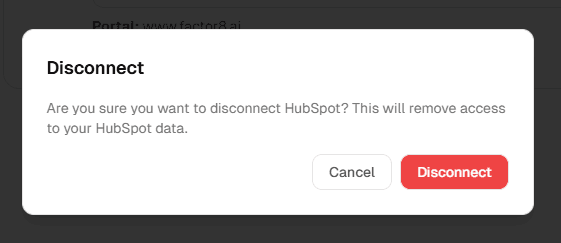
- Confirm the disconnection in the dialog by clicking "Yes, I am sure"
This will automatically uninstall Factor8 from your HubSpot account.
What happens when you disconnect:
- Factor8 will be removed from your HubSpot account
- All stored OAuth credentials will be removed/revoked
- All HubSpot workflow actions using Factor8 will stop functioning
- All HubSpot Breeze Agents using Factor8 tools will stop functioning
- Existing data in HubSpot (contacts, companies, properties) will remain unchanged
- Existing data in Factor8 (tasks, agent outputs, content) will remain unchanged
- You can reconnect and reinstall at any time by following the installation steps again
Troubleshooting
Connection Issues
"Failed to connect to HubSpot"
- Ensure you have admin or super admin permissions in HubSpot
- Check that third-party app installations are allowed in your HubSpot settings
- Try disconnecting and reconnecting
"No active brand"
- Make sure you've selected a brand before connecting
- The connection is stored per-brand, so you must be viewing a specific brand
Workflow Action Issues
"This HubSpot portal is not connected to any brand"
- The portal making the request hasn't been connected to Factor8
- Connect HubSpot from the brand's Integrations settings
"Agent not found"
- Verify the agent name is spelled correctly in your workflow
- Check that the agent exists and is active in Factor8
"Security validation failed"
- The request couldn't be validated as coming from HubSpot
- Contact support if this persists
Prerequisites
Before connecting HubSpot, ensure you have:
- A Factor8 account with at least one brand created
- A HubSpot account with admin or super admin permissions
- Access to HubSpot workflows (requires Marketing Hub Professional or Enterprise for workflow automation features)
Security & Data Privacy
- Each brand's data is completely isolated from other brands
- HubSpot workflow actions validate the portal ID before returning any data
- Only data belonging to the connected brand is accessible
- Factor8 adheres to current accessibility, privacy, and GDPR standards
- OAuth credentials are securely stored and encrypted
Support
If you encounter issues with the HubSpot integration:
- Email: aisucks@factor8.ai
FAQ
Q: Can I connect multiple HubSpot portals to one brand?
A: No, each brand can only have one HubSpot connection at a time. However, different users in the same brand can each have their own connection.
Q: Will disconnecting delete my Factor8 data?
A: No, disconnecting only removes the HubSpot credentials. All tasks, content, and data remain in Factor8.
Q: What HubSpot permissions are required?
A: You need admin or super admin access to install third-party apps.
Q: Can I use workflow actions with HubSpot Free?
A: The connection works with all HubSpot tiers, but workflow automation requires Marketing Hub Professional or Enterprise.